Button StudioONLINE PROPERTY SYSTEMS
Local & offlinev0.1

YOUR HOME. YOUR ICONS.

A button of your own.

Turn your artwork into a programmable Control4 Experience Button.

Create your own Control4 Experience Button by uploading your artwork, then pressing Download Control4 Driver. Button Studio creates a driver file you can install and use in Control4 programming.

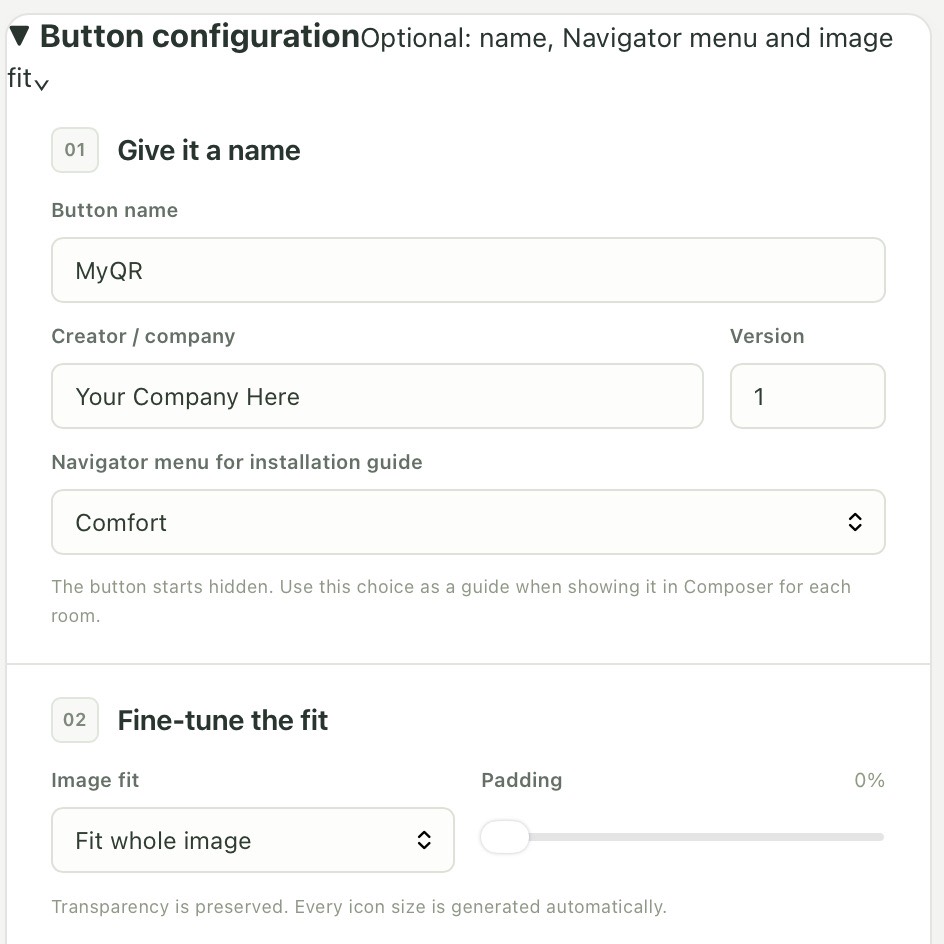
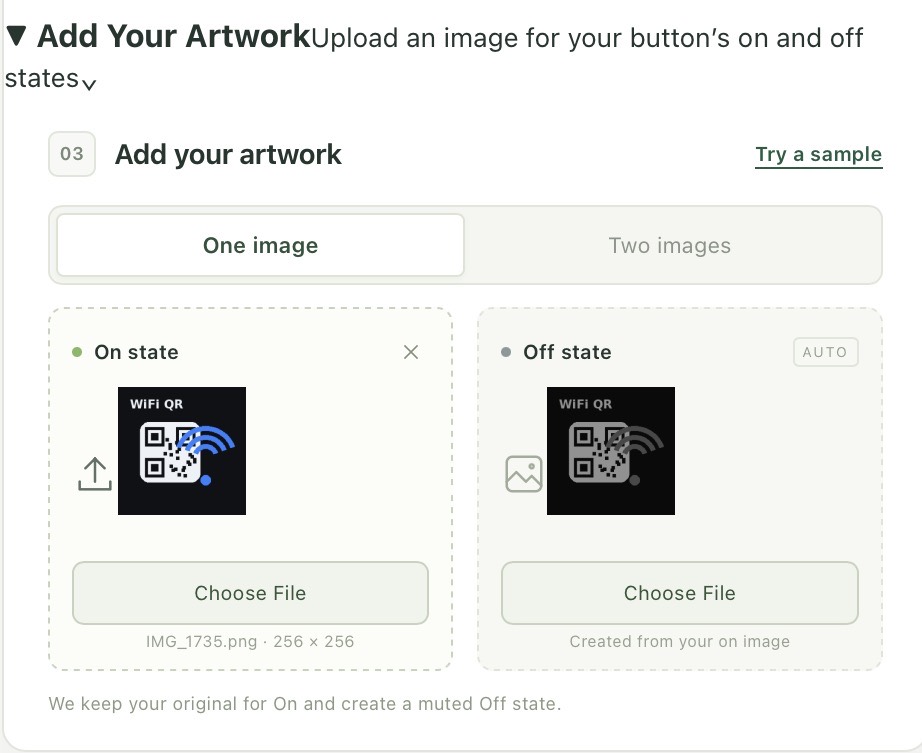
Simply expand Button configuration below and fill in the details. Then expand Add Your Artwork and select Choose File to upload an image. When you’re done, press Download Control4 Driver.
Button Studio is currently free to use. A small charge will be introduced in the future.

Button configurationOptional: name, Navigator menu and image fit
01

Give it a name

02

Fine-tune the fit

Transparency is preserved. Every icon size is generated automatically.

Add Your ArtworkUpload an image for your button’s on and off states
03

Add your artwork

State artwork
On state

Photos and images · up to 10 MB

Off stateAUTO

Created from your on image

We keep your original for On and create a muted Off state.

Website generations are logged with the dealer/company name, button name, UTC date and time, and IP address. Read the Privacy Notice. Desktop app exports are not sent to OPS.

One file. Everything included.Artwork, driver code and Composer instructions in a .c4z.
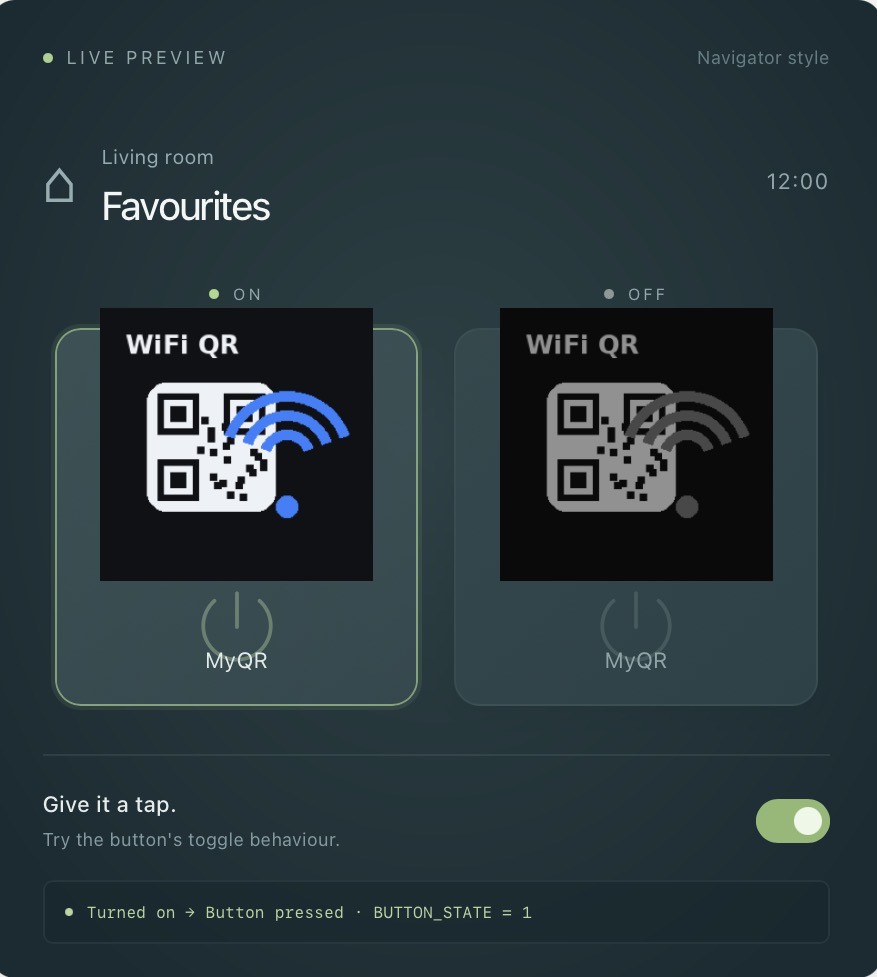
LIVE PREVIEWNavigator style
ON
Experience Button
OFF
Experience Button
Give it a tap.Try the button's toggle behaviour.
Add an image to start previewing

Ready for Composer programming

Press, on and off events. Set-state and toggle commands.
On/off conditions and a state variable.

70903005121024 px+ Composer icons

Illustrative preview. Final appearance varies by Navigator device.

FROM STUDIO TO SMART HOME

Install your new button.

  1. Save your driver. Give your button a name, choose a menu for these instructions, add your artwork and save the .c4z file.
  2. Add it in Composer Pro. Copy the file into your Control4 Drivers folder, find it in the local driver search and add it to a room.
  3. Unhide it in Comfort. In that room's Navigator tab, click Modify for the menu, move the button from Hidden Devices to Shown Devices, click OK and refresh Navigators. Repeat in every room where you want it visible.
  4. Make it do something. In Programming, select Button pressed, Turned on or Turned off and add your actions. TurnOn, TurnOff, ToggleState and SetState can update its icon.
Visibility is set per room in Composer. The driver starts hidden; the menu choice above only tailors these instructions.
Using real device feedback? Set Press Behaviour to Events only in Composer. Set the button On or Off when the device confirms its state.

Keep the filename unchanged after saving; the icon paths depend on it. Test generated drivers on your Control4 system. These are custom drivers, not Control4-certified products.